

Set up SSH access
Before you can connect to a worker, add your SSH public key to the Credentials page.SSH into a worker
1
Ensure you have a running worker
Before you can connect, you need at least one worker running. To guarantee a worker is available:
- Navigate to the Serverless section of the Runpod console.
- Select your endpoint from the list.
- Go to the Configuration tab.
- Under Worker configuration, set Active workers to 1 or more.
- Click Save to apply the changes.
2
Select a running worker
Select the Workers tab in your endpoint’s details page to view all running workers for this endpoint.Here you’ll see a list of all workers associated with your endpoint. Find a worker with a status of Running and click on it to open its detail pane.
3
Copy the SSH command
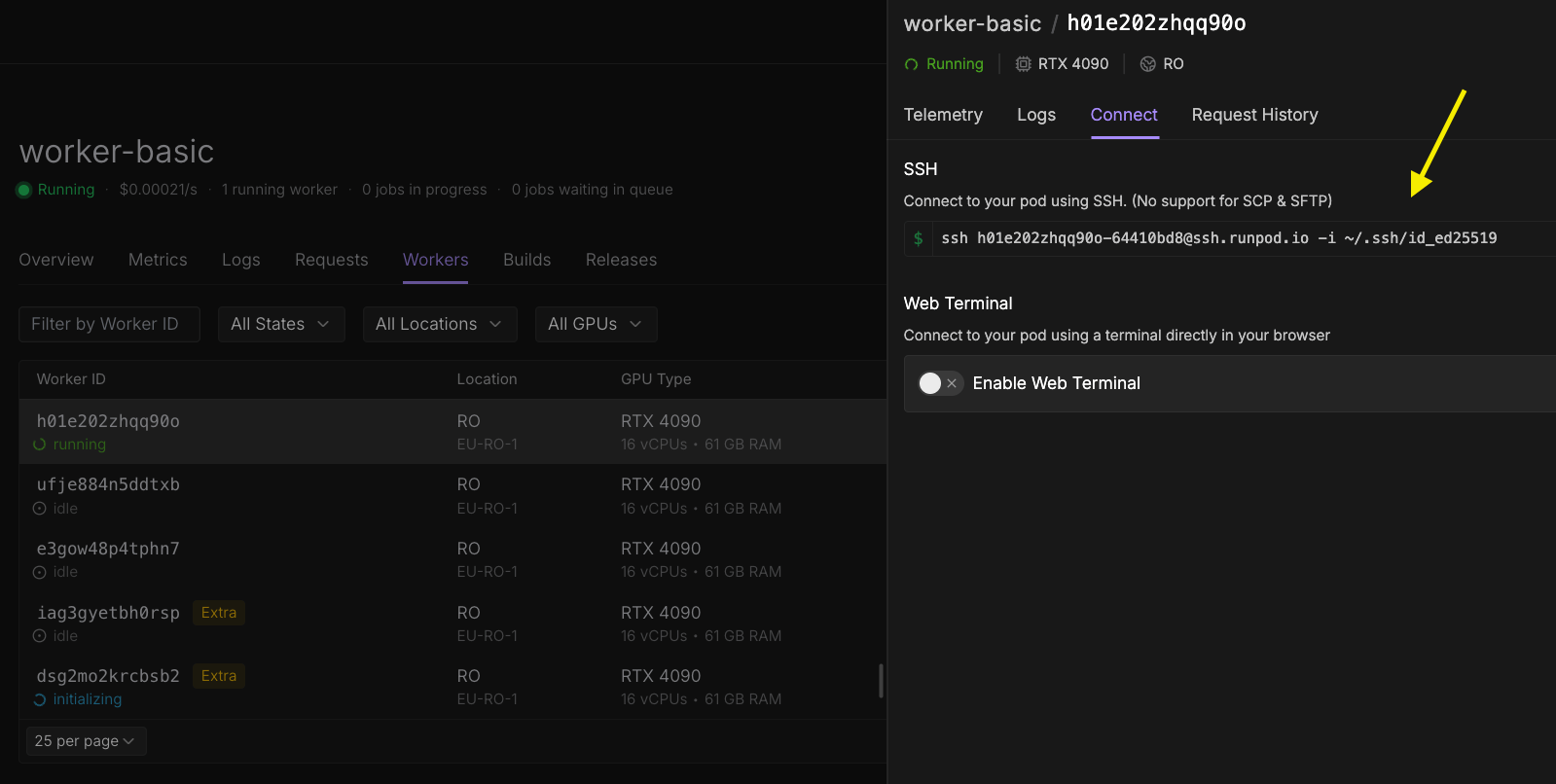
- Select the Connect tab.
- Under the SSH section, copy the provided SSH command.
If you saved your SSH key to a custom location, update the path after the
-i flag to match your key’s location.4
Run the SSH command
Open your local terminal and paste the SSH command you copied. Press Enter to connect to the worker.Once connected, you can:
- Inspect logs and debug output.
- Check environment variables with
env. - Verify file systems and mounted volumes.
- Test your worker’s behavior in the production environment.
- Run diagnostic commands to troubleshoot issues.
Troubleshooting SSH key authentication
If you’re asked for a password when connecting to your worker via SSH, this means something is not set up correctly. Runpod does not require a password for SSH connections, as authentication is handled entirely through your SSH key pair. Here are some common reasons why this might happen:- If you copy and paste the key fingerprint (which starts with
SHA256:) into the Credentials page instead of the actual public key (the contents of yourid_ed25519.pubfile), authentication will fail. - If you omit the encryption type at the beginning of your public key when pasting it (for example, leaving out
ssh-ed25519), the key will not be recognized. - If you add multiple public keys but do not separate them with a newline, only the first key will work. Each key must be on its own line.
- If you specify the wrong file path to your private key when connecting, SSH will not be able to find the correct key (
No such file or directoryerror). - If your private key file is accessible by other users on your machine, SSH may refuse to use it for security reasons (
bad permissionserror). - If your SSH configuration file (
~/.ssh/config) points to the wrong private key, you will also be prompted for a password. Make sure theIdentityFileentry in your config file matches the private key that corresponds to the public key you added to your Runpod account.